
Multi-Factor Authentication Guide

Multi-factor Authentication Guide

The purpose of this document is to provide information about multi-factor authentication (MFA) feature on the compliance portal.

MFA is an authentication method that adds a layer of protection to the sign-in process. In addition to the username and password, once enabled, MFA will require the user to input a one-time passcode (OTP) before entering the portal.

How to enable MFA

1. Account Preferences screen

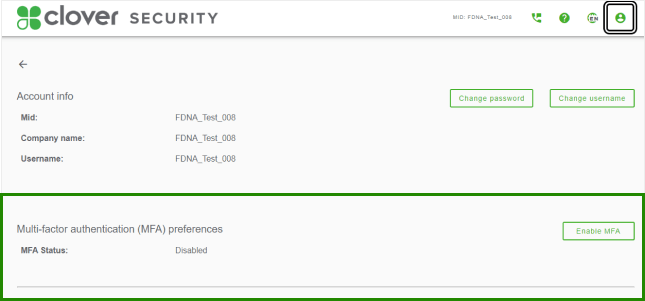
The user should go to their Account Preferences screen, scroll down to the “Multi-factor authentication (MFA) preferences” section.

2. Enable MFA

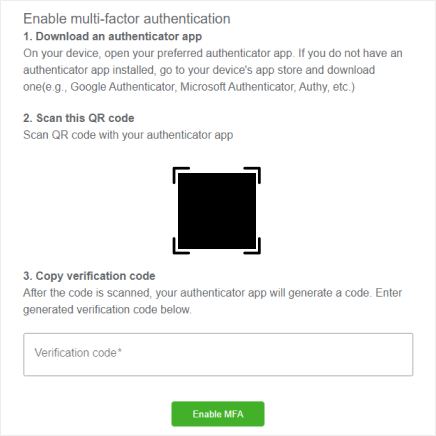
Click “Enable MFA” and follow the instructions on the screen.

Open the authenticator app, scan the QR code.

3. Verification code

Type in the verification code, and click “Enable MFA” to enable the feature. A portal message will be displayed as well.

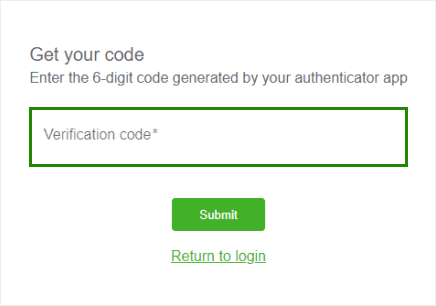
The user will be required to input the verification code on all subsequent logins (until MFA is disabled).

How to disable MFA

1. Disable MFA

The user should go to their Account Preferences screen, scroll down to the “Multi-factor authentication (MFA) preferences” section.

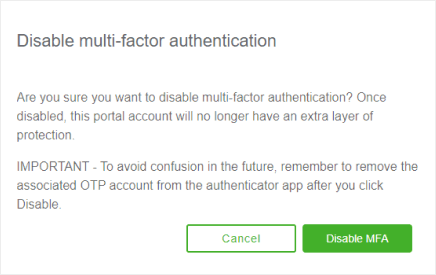
Click “Disable MFA” and follow the instructions on the screen.

Generally, please refer to your authenticator app specific steps to remove an "account", which remember is the account that is generating the one-time-passcode (OTP). For convenience, here are some public guides for common and popular authenticator apps:


System requirements

The SAIR MFA implementation requires:

User to download and install an authenticator app of their choice onto a system or device that can detect or scan a QR code.

FAQs

Currently only time-based one-time password (TOTP) via authenticator app is supported.

Please contact the compliance portal support team for further assistance. You will be required to provide additional authentication information for security purposes.

Yes, all merchant users of the system will be able to enable MFA.

Yes. Please register your compliance portal account as usual. After you complete registration, go to your Account Preferences screen to enable MFA.

For users that use single-sign-on (SSO), you will be able to enable MFA if you choose (but it is not required). If MFA is enabled for a SSO user, SSO will continue to work as usual.